How we keep the layout when we translate a PDF
What happens to a PDF between upload and download, what we measured on 20 hard files, and what VibeQL cannot do yet.
· 6 min read
A PDF does not store paragraphs. It stores glyphs at fixed positions on a page. A heading is a run of characters placed at certain coordinates in a certain font and size. A table is text and lines that happen to line up.
That is why a PDF is the hardest format to translate. Copy the text out, translate it, and you lose the page. Put the translation back carelessly, and it spills over columns, hides behind images or shrinks to an unreadable size.
This post explains the steps VibeQL takes to keep the page intact, what we measured, and where the method stops.
Step 1: find the text blocks and their styles
First we read every page and group the glyphs into blocks: paragraphs, headings, table cells, captions, footnotes, form labels. For each block we record its box on the page, its reading order, and its styles. A style is a font, a size, a colour, and bold or italic.
A block often mixes styles. A sentence can contain a bold term, an italic title, or a word in a different colour. We keep those spans, because a reader expects the bold word to stay bold after translation.
Some content is not a sentence. Inline math and superscripts become placeholders that the translation must keep. Text with almost no letters, such as page numbers and figures in a table, stays as it is.
Step 2: translate segments with the formatting tags intact
Each block becomes a segment. Inside a segment, each style span gets a small tag. The translation step sees text like this:
Submit <b>Form W-9</b> to the requester. Do not send it to the IRS.The tags must come back in the translation, around the words that carry the same meaning. Word order changes between languages, so the bold span can move in the sentence. That is correct, as long as the tag pairs stay complete.
We check every segment. If a tag is missing or does not match, we translate that segment again on its own. If it still fails, we use a plain translation without inline styles for that one segment, so a broken tag never reaches the page. A broken tag is the most common way a translated PDF loses its formatting, so we treat it as an error, not as a warning.
Step 3: fit longer text back into its box
Translations are often longer than the source. Portuguese, Spanish and German text usually takes more space than English. The box on the page does not grow.
To fit the text, we work in this order:
- Paragraphs that are stacked in one block are written back as one flow. A longer paragraph pushes the next one down instead of covering it.
- The flow can grow into empty space below it, or to the right for a single line, until it meets other text, an image or a line.
- If the text still does not fit, its font size goes down until it does.
Body text of the same size on one page shrinks together. Two columns of a paper keep the same text size, so the page still looks even. A long table cell does not shrink the heading above it.
Step 4: use metric-compatible replacement fonts
Many PDFs embed only the characters they use. An English document often has no glyphs for “ç” or “ã”. So we cannot write Portuguese text in the original embedded font.
We write the translation in replacement fonts that are metric-compatible with common document fonts: the same character widths, as close as we can match. Sans, serif, monospace and narrow text each get a matching face, and bold, italic and colour carry over. A paragraph in the replacement font takes about the same space as it did in the original. The page keeps its rhythm, and step 3 has less work to do.
Step 5: render the page again
Last, we remove only the original text from each page and draw the translated text in its place. Images, vector graphics, lines, backgrounds and page size stay untouched. The output is a normal PDF with real text, so you can select it, search it and print it.
What it looks like
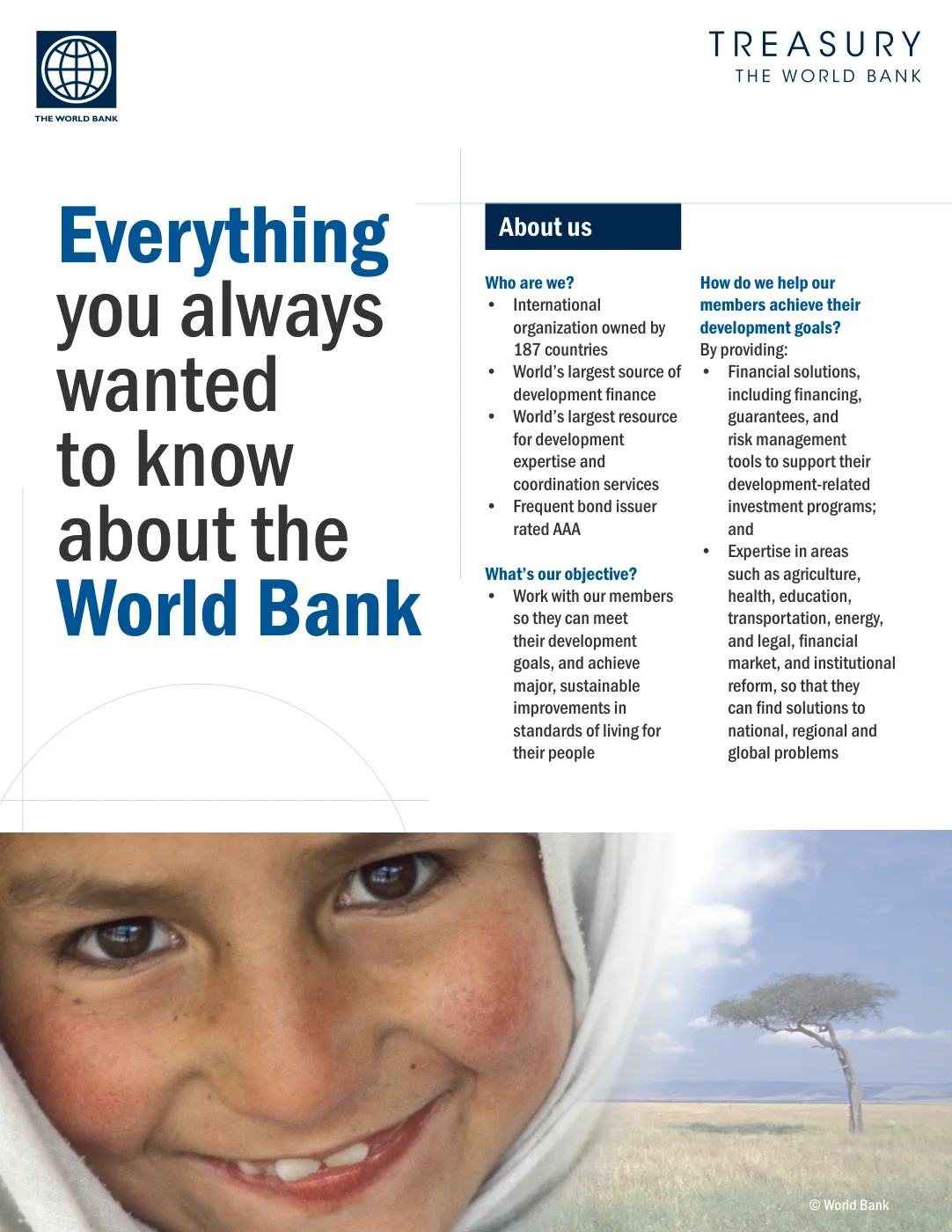
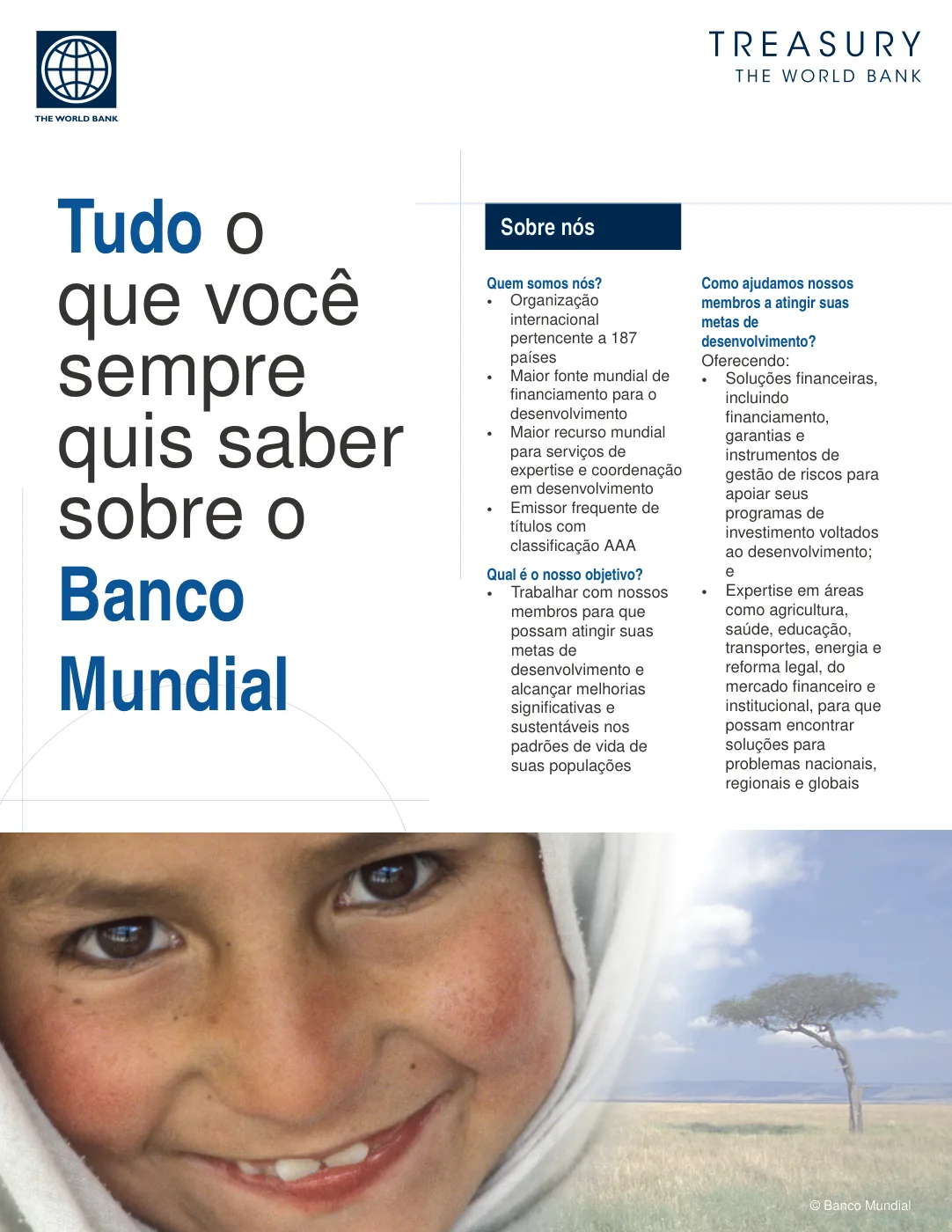
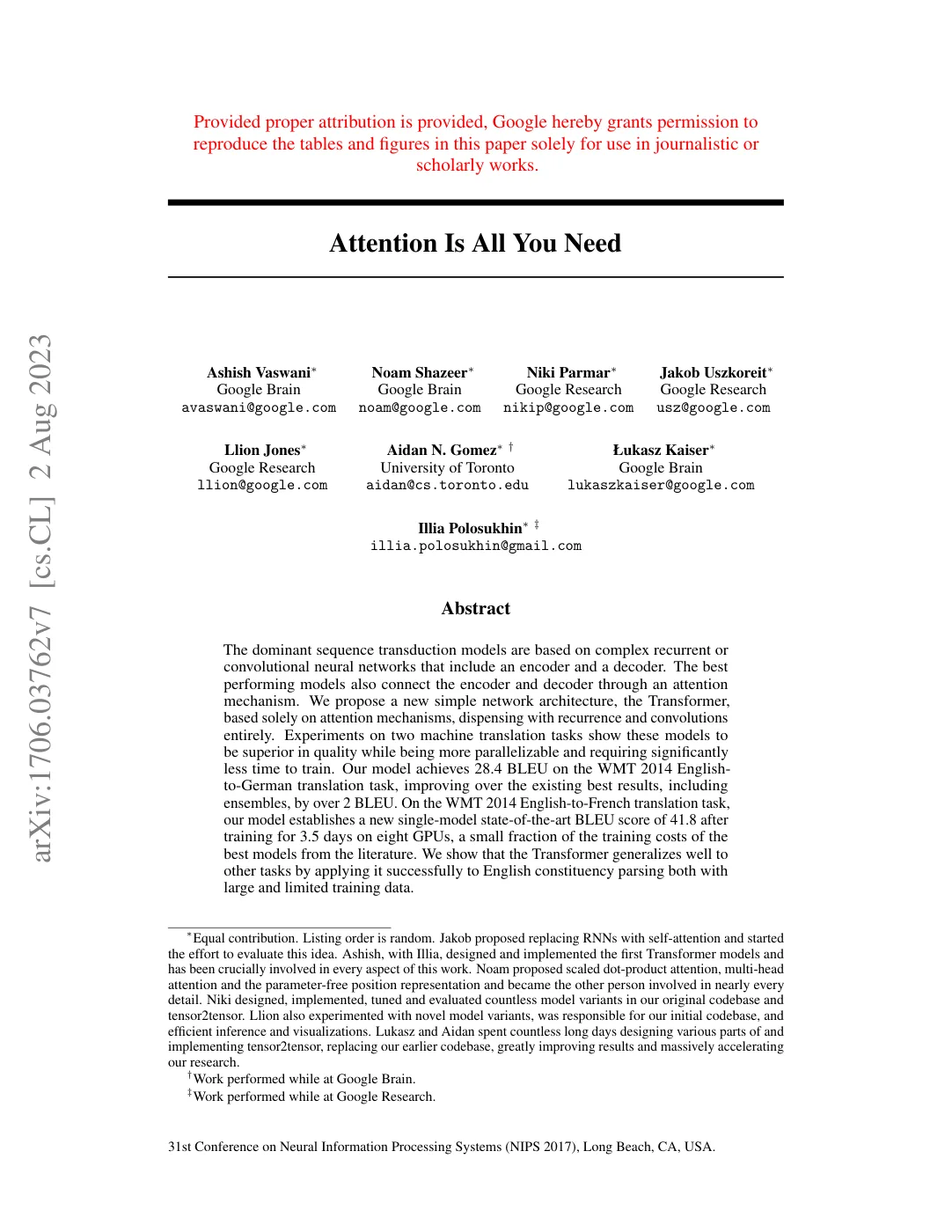
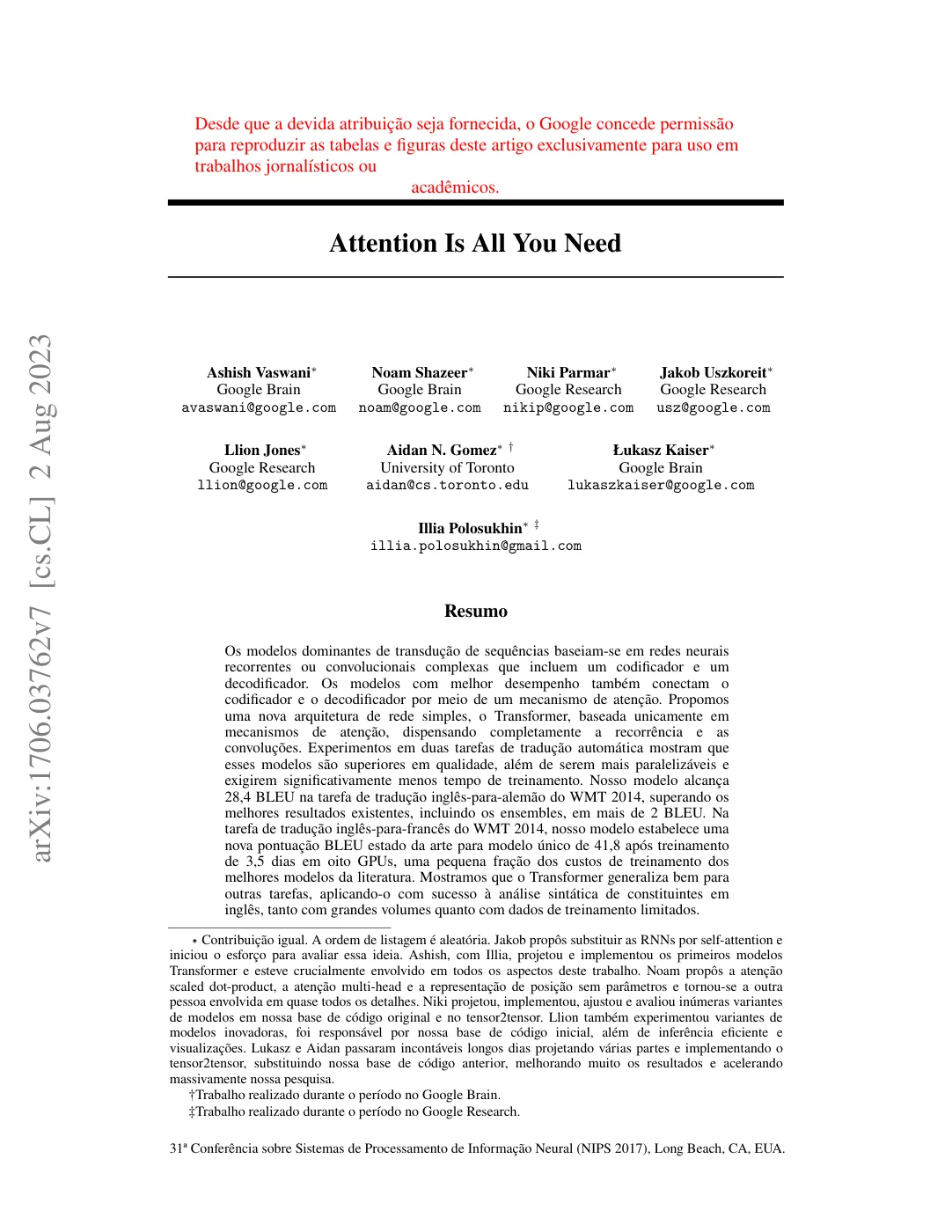
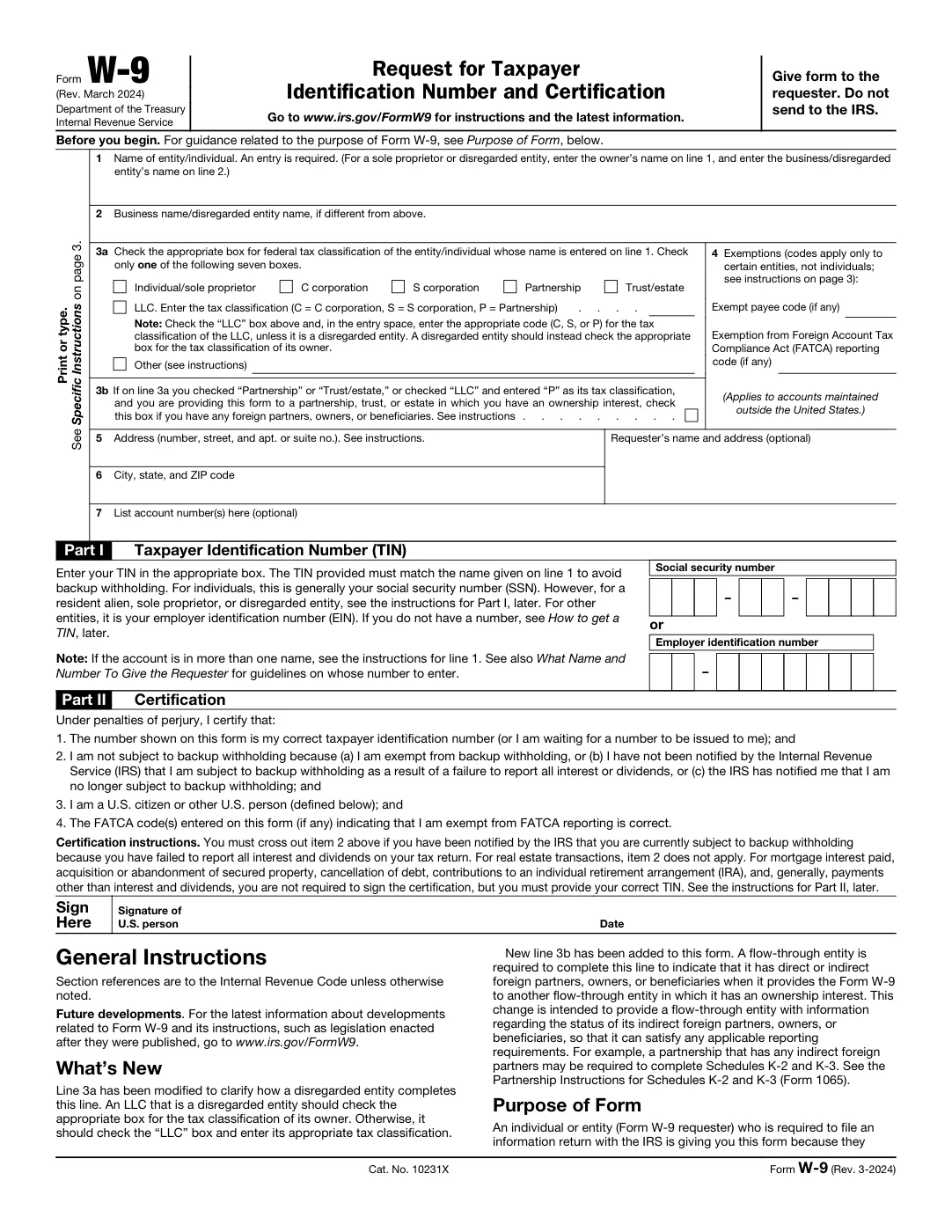
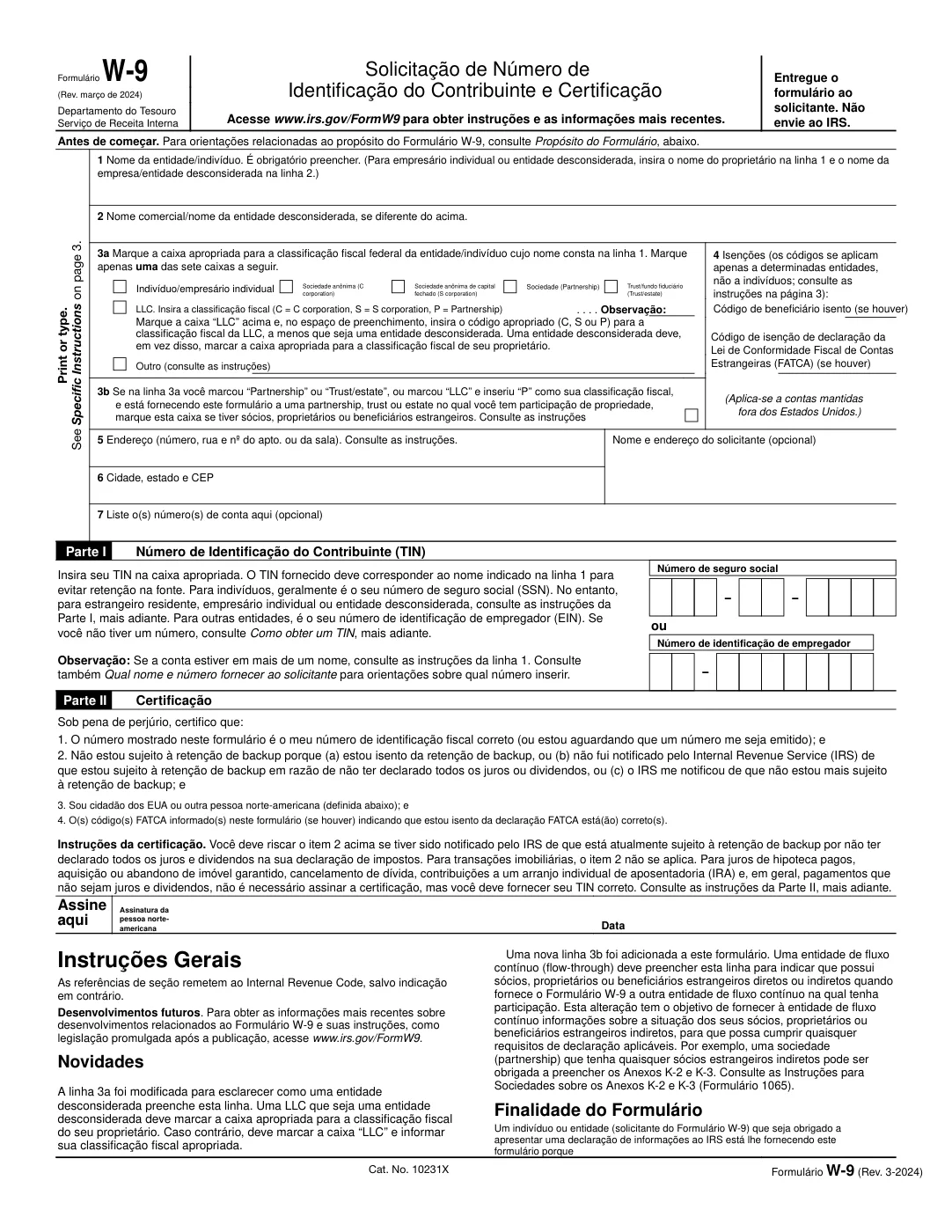
These are real outputs, English original on the left and Brazilian Portuguese on the right.
What we measured
We test on files that break simple translators. Our set has 20 hard files: research papers, IRS forms, designed reports, Word templates and a 59-slide deck. We translate all of them from English to Brazilian Portuguese and check every output.
- 0 broken tags. No segment lost or mixed up its formatting.
- Under 2% English left. We checked the remaining English words by hand. They were names, which should stay in English.
- 0.05 to 2.2 seconds of CPU per page. A simple text page is at the low end. A dense form with many small fields is at the high end.
We also ran the same files through BabelDOC, an open-source PDF translator. In our tests VibeQL was 3–10x faster, with better font and colour fidelity.
What we cannot do yet
Some limits are real, and you should know them before you upload a file.
- No OCR for scanned PDFs yet. If your PDF is a photo or a scan of paper, it has no text layer. VibeQL has nothing to translate in it. We plan to add OCR.
- Text inside images stays as it is. A chart exported as a picture, or a logo with words, keeps its original language.
- Fonts are replaced by metric-compatible fonts. The output uses fonts with the same widths as common document fonts. They are close, but a custom brand typeface does not carry over.
- Very long translations get smaller text. When a translation is much longer than the source and there is no free space around it, the font size goes down. A dense page can look tighter than the original.
Try it
VibeQL is in beta and sign-up is closed. Join the waitlist to get an account. You can read more about file translation on the documents page, or see the file limits for each plan in limits and errors.